🗂️ Categorie di Prodotto
Le Categorie di Prodotto organizzano i tuoi prodotti e forniscono impostazioni predefinite condivise per aliquote fiscali, codici HSN/SAC e unità — così non devi impostarle individualmente su ogni prodotto.
Cosa Fanno le Categorie di Prodotto
| Funzionalità | Dettagli |
|---|---|
| Organizza i prodotti | Raggruppa elementi correlati sotto una categoria denominata (ad es., "Servizi di Consulenza IT") |
| Imposta un'aliquota fiscale predefinita | Tutti i prodotti nella categoria ereditano questa aliquota quando Usa Aliquota Fiscale del Gruppo è abilitata |
| Imposta un codice HSN/SAC | Codice condiviso per la categoria — i prodotti lo ereditano per impostazione predefinita |
| Contrassegna come Beni o Servizi | Il flag isService determina se la categoria utilizza codici HSN (beni) o SAC (servizi) |
| Imposta un'unità predefinita | I prodotti nella categoria usano di default questa unità di misura |
| Abilita l'importazione massiva | I prodotti possono essere importati in massa direttamente in una categoria tramite Excel |
| Migliora i report | Filtra e crea report sulle fatture per categoria di prodotto |
📋 Elenco Categorie di Prodotto
Categorie di Prodotto è una pagina a sé — apri Catalogo → Categorie nella barra laterale (separata dall'elenco Prodotti). Usa la barra Cerca categorie di prodotto... per filtrare, e fai clic su + Aggiungi Nuova Categoria Prodotto per crearne una.
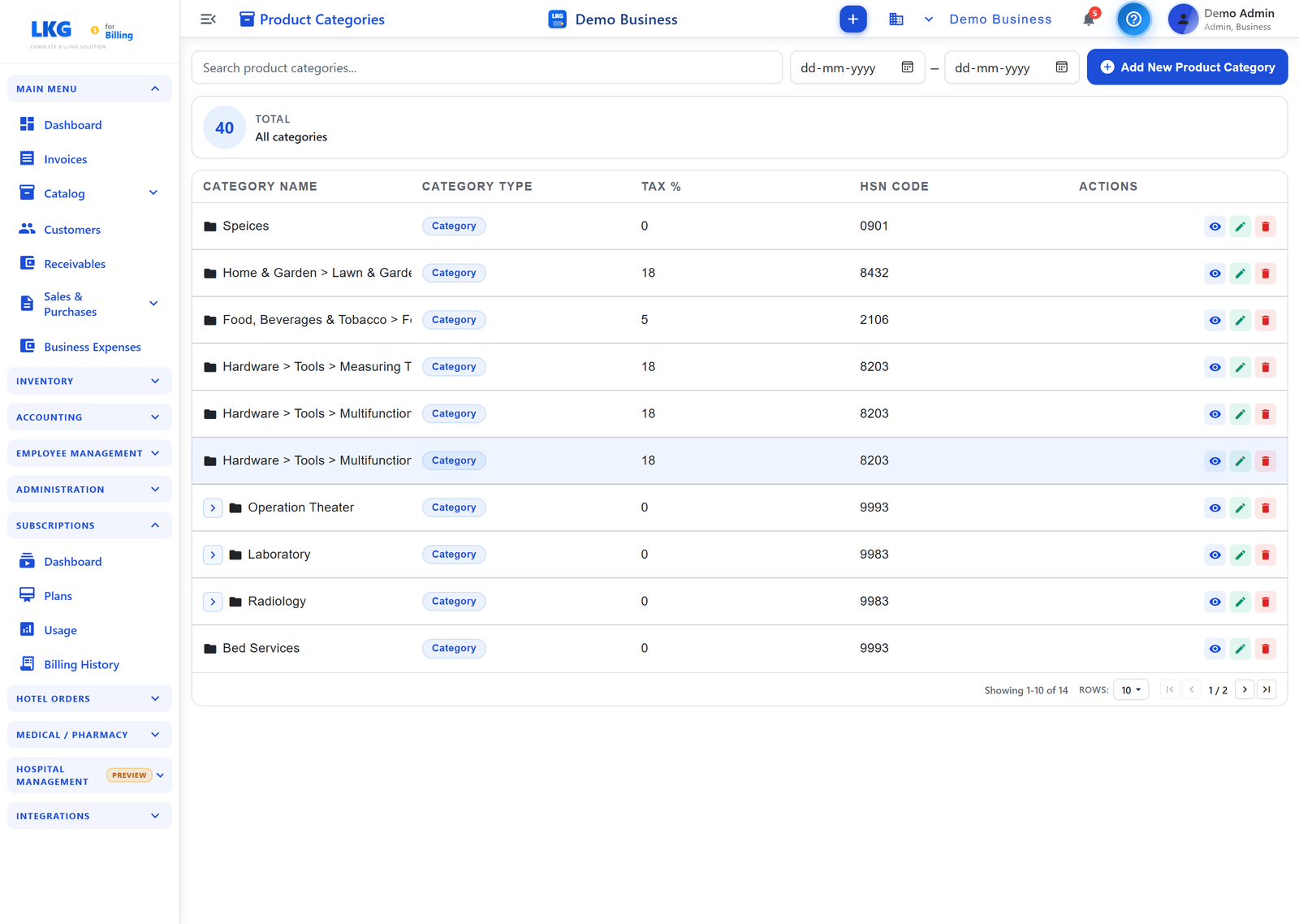
Una scheda di conteggio TOTALE — Tutte le categorie si trova sopra la tabella, e puoi filtrare con la barra di ricerca o i selettori di data Da / A.
Colonne della Tabella
| Colonna | Descrizione |
|---|---|
| Nome Categoria | Nome visualizzato della categoria (le sotto-categorie appaiono come Genitore > Figlio) |
| Tipo Categoria | Badge di classificazione della categoria |
| Tassa % | Aliquota fiscale predefinita applicata ai prodotti in questa categoria |
| Codice HSN | Codice HSN/SAC condiviso per la categoria |
| Azioni | Icone Visualizza, Modifica, Elimina |
Riferimento Campi Categoria
| Campo | Obbligatorio | Descrizione | Validazione |
|---|---|---|---|
Nome Categoria (name) | ✅ | Nome visualizzato per la categoria | 3–300 caratteri |
Codice HSN / SAC (hsnCode) | ✅ | Codice di classificazione fiscale condiviso da tutti i prodotti nella categoria | 4, 6 o 8 cifre — senza zeri iniziali |
Aliquota Fiscale Predefinita (defaultTaxRate) | ✅ | GST % applicata ai prodotti che hanno Usa Aliquota Fiscale del Gruppo abilitata | 0–999,999 |
È Servizio (isService) | ✅ | true → la categoria usa codici SAC (servizi); false → codici HSN (beni) | Interruttore |
Unità Predefinita (unit) | — | Unità di misura predefinita preselezionata quando si aggiunge un prodotto a questa categoria | 3–8 lettere |
Descrizione (description) | — | Note interne su cosa appartiene a questa categoria | Fino a 1000 caratteri |
Codice Categoria (groupCode) | Auto | Codice univoco generato dal sistema nel formato GRxxxxByyy — non modificabile | Assegnato automaticamente |
Per aggiungere una nuova categoria, consulta Crea Categoria Prodotto per una guida completa passo passo.
✏️ Modificare una Categoria di Prodotto
- Trova la categoria nell'elenco Categorie di Prodotto
- Fai clic sull'icona Modifica (matita)
- Aggiorna qualsiasi campo — Nome Categoria, Codice HSN/SAC, Aliquota Fiscale Predefinita, È Servizio, Unità, Descrizione
- Fai clic su Salva Categoria
Impatto della Modifica sui Prodotti
:::warning Effetto a Cascata sull'Aliquota Fiscale L'aggiornamento dell'Aliquota Fiscale Predefinita di una categoria cambia immediatamente la tassa effettiva su tutti i prodotti in quella categoria che hanno Usa Aliquota Fiscale del Gruppo abilitata. Questo influisce su tutte le nuove fatture create dopo la modifica. Le fatture finalizzate esistenti non sono interessate. :::
| Modifica | Effetto sui Prodotti |
|---|---|
| Rinomina categoria | I prodotti restano nella categoria; il nome visualizzato cambia ovunque |
| Cambia Aliquota Fiscale Predefinita | I prodotti con Usa Aliquota Fiscale del Gruppo = attivo usano ora la nuova aliquota sulle nuove fatture |
| Cambia Codice HSN/SAC | I prodotti che hanno ereditato il codice della categoria ora mostrano il codice aggiornato sulle nuove fatture |
| Cambia È Servizio | Non modifica retroattivamente i record dei prodotti — aggiorna individualmente se necessario |
🗑️ Eliminare una Categoria di Prodotto
- Trova la categoria nell'elenco Categorie di Prodotto
- Fai clic sull'icona Elimina (cestino)
- Conferma nel popup
Non puoi eliminare una Categoria di Prodotto che ha ancora prodotti assegnati. Prima riassegna o elimina tutti i prodotti nella categoria, poi elimina la categoria vuota.
Assegnare Prodotti a una Categoria
Quando crei o modifichi un prodotto, seleziona la categoria dal menu a tendina Categoria Prodotto. Il prodotto eredita:
- L'Aliquota Fiscale Predefinita della categoria (quando Usa Aliquota Fiscale del Gruppo è attiva)
- Il Codice HSN/SAC della categoria (può essere sovrascritto per singolo prodotto)
- L'Unità Predefinita della categoria (preselezionata, può essere modificata)
I prodotti possono essere spostati tra categorie in qualsiasi momento modificando il prodotto e selezionando una categoria diversa.
📥 Importazione Massiva in una Categoria
Puoi importare più prodotti direttamente in una categoria usando un modello Excel:
- Nella pagina Prodotti, fai clic su Importa
- Seleziona la Categoria Prodotto di destinazione
- Fai clic su Scarica Modello — un file Excel formattato per quella categoria
- Compila le righe prodotto (Nome, Prezzo Unitario, Codice HSN, Unità, Codice a Barre, ecc.)
- Carica il file compilato
- Rivedi il risultato dell'importazione (conteggio successi, righe non riuscite con messaggi di errore)
Tutti i prodotti importati ereditano l'aliquota fiscale predefinita della categoria se Usa Aliquota Fiscale del Gruppo è attiva. Imposta correttamente l'aliquota fiscale della categoria prima di importare per evitare di dover aggiornare ogni prodotto in seguito.
Best Practice
- Crea le categorie prima dei prodotti — i prodotti ereditano le impostazioni predefinite, risparmiando inserimento manuale
- Una categoria per ogni combinazione di aliquota fiscale + HSN/SAC — riduce al minimo le discrepanze fiscali accidentali
- Usa
isServicein modo accurato — influisce su quale tipo di codice (HSN o SAC) viene usato sulle fatture - Mantieni i nomi delle categorie significativi — i membri del team li usano per categorizzare i prodotti sulle fatture
- Evita troppe categorie ristrette — punta a categorie allineate con la tua struttura di aliquote GST, non con ogni singolo tipo di prodotto
:::caution Conformità Fiscale Verifica sempre i codici HSN/SAC e le aliquote fiscali con il tuo commercialista o consulente GST. Codici errati sulle dichiarazioni presentate potrebbero richiedere rettifiche. :::
Esempi di Configurazione Categorie
Azienda di Servizi IT
| Categoria | È Servizio | Codice | Aliquota Fiscale |
|---|---|---|---|
| Sviluppo Software | ✅ | 998315 | 18% |
| Consulenza IT | ✅ | 998314 | 18% |
| Supporto Tecnico | ✅ | 998316 | 18% |
| Formazione | ✅ | 999293 | 18% |
Rivenditore di Hardware
| Categoria | È Servizio | Codice | Aliquota Fiscale |
|---|---|---|---|
| Apparecchiature di Rete | ❌ | 8517 | 18% |
| Computer e Portatili | ❌ | 8471 | 18% |
| Accessori | ❌ | 8473 | 18% |
| Contratti AMC | ✅ | 998316 | 18% |
⚠️ Risoluzione dei Problemi
Impossibile Eliminare una Categoria di Prodotto
Problema: Il pulsante Elimina mostra un errore.
- Controlla se ci sono ancora prodotti assegnati a questa categoria
- Vai all'elenco Prodotti e filtra per questa categoria
- Riassegna o elimina quei prodotti
- Prova a eliminare di nuovo la categoria
I Prodotti Non Ereditano l'Aliquota Fiscale della Categoria
Problema: Il prodotto mostra un'aliquota fiscale diversa da quella predefinita della categoria.
- Modifica il prodotto
- Controlla se Usa Aliquota Fiscale del Gruppo è abilitata
- Abilitala per ereditare l'aliquota fiscale predefinita della categoria
- Fai clic su Salva
Errore di Validazione Codice HSN/SAC
Problema: Formato codice non valido o errore di validazione.
- Il codice deve avere esattamente 4, 6 o 8 cifre
- Non sono ammessi spazi o caratteri speciali
- Non può essere tutti zeri
- Usa il pulsante Compila Automaticamente Codice HSN per suggerimenti
🔗 Correlati
- Crea Categoria Prodotto — guida passo passo per aggiungere una nuova categoria
- Crea un Prodotto — aggiungi prodotti a una categoria
- Modifica / Elimina Prodotti — riassegna prodotti tra categorie
- Panoramica Prodotti — funzionalità complete del catalogo