📦 Products Overview
Manage your complete product and service catalog in LKG for Billing — set pricing, HSN/SAC codes, tax rates, units, and more.
What are Products?
Products represent the goods and services you sell to customers. Every line item on an invoice comes from your product catalog. The Products module lets you:
- Build and maintain a catalog of goods and services
- Set selling prices, MRP, and discount rules
- Assign HSN/SAC codes and tax rates for GST compliance
- Track inventory levels and stock status
- Organize products into groups (categories)
- Bulk import products from Excel
- Print barcode labels
📋 Product List View
When you navigate to Products from the main menu, you see your full catalog in a searchable table with a summary of the total product count.
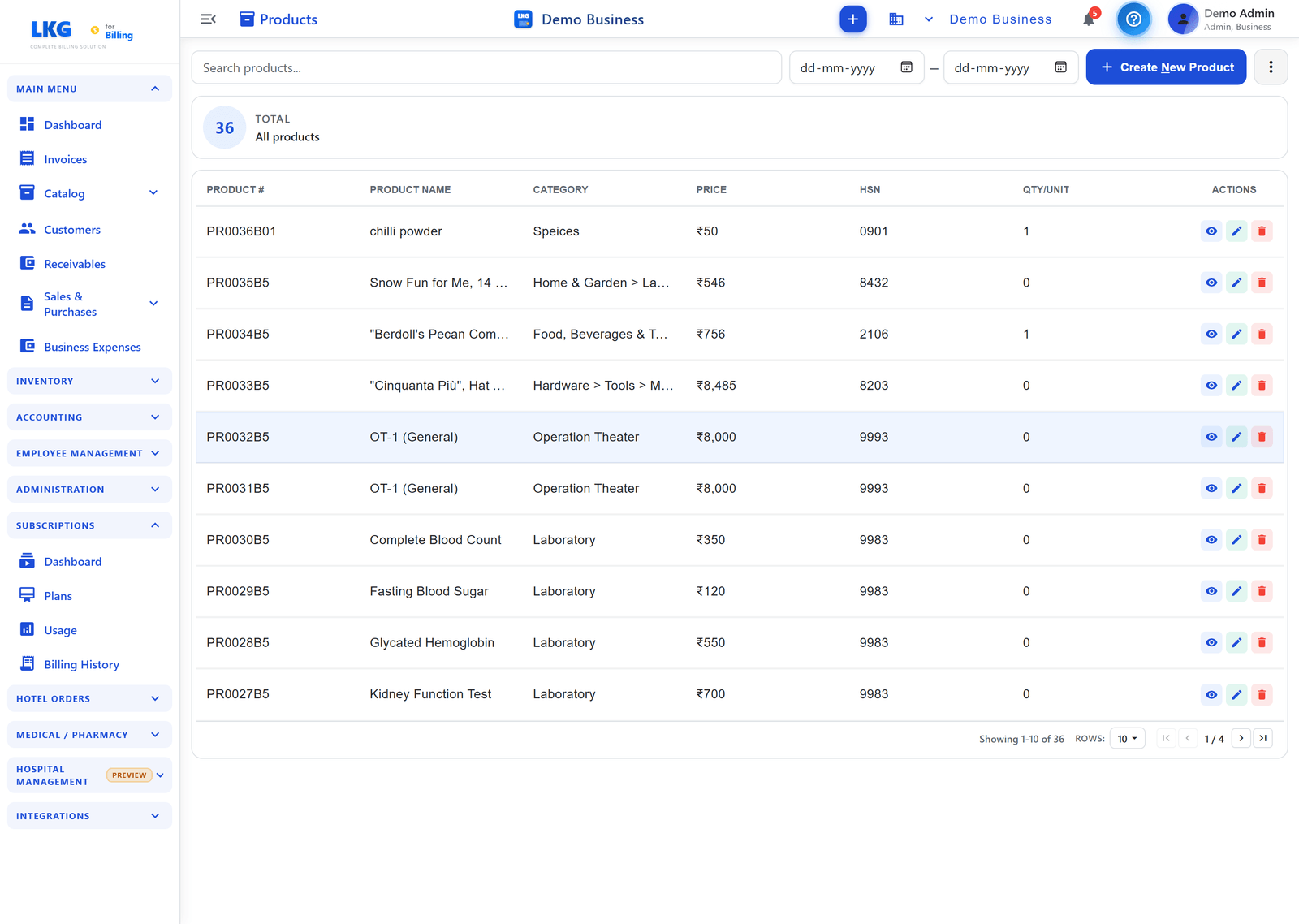
Page Actions
At the top right of the Products page:
| Button | Description |
|---|---|
| + Create New Product | Open the product creation form to add a new item |
| ⋮ (More) | Overflow menu with Print Labels (barcode labels — small/medium/large) and Import (bulk-import products from an Excel template) |
You can filter the list with the search bar or the From / To date pickers, and a TOTAL — All products count card sits above the table.
Table Columns
| Column | Description |
|---|---|
| Product # | Auto-generated product code (e.g., PR0036B01) |
| Product Name | Display name as it appears on invoices |
| Category | Product category the item belongs to (sub-categories show as Parent > Child) |
| Price | Unit selling price in INR (₹) |
| HSN | HSN or SAC code for GST classification |
| Qty/Unit | Current stock quantity / unit of measure |
| Actions | Per-row actions: View, Edit, Delete |
Row Actions
| Icon | Action | Who can use |
|---|---|---|
| Eye (View) | Open read-only product details dialog | All users |
| Pencil (Edit) | Open product for editing | All users |
| Trash (Delete) | Delete the product — requires confirmation | Admin only |
🔍 Searching Products
Use the search bar at the top of the Products page:
- Type a product name, HSN code, or category
- Results filter instantly as you type
Example searches:
Consulting— all consulting services8471— all products with HSN 8471Annual— annual subscription products
🏷️ Product Types: Goods vs Services
Each Product Group is flagged as either Goods or Services. This distinction determines whether the group uses an HSN code (goods) or a SAC code (services) for GST compliance.
| Type | Code Type | Examples |
|---|---|---|
| Goods | HSN (4–8 digits) | Hardware, software licenses, physical goods |
| Services | SAC (6 digits) | Consulting, development, maintenance |
:::info GST Compliance HSN/SAC codes are mandatory for GST invoicing above certain turnover thresholds. Assigning the correct code at the product or group level ensures your invoices meet tax filing requirements. :::
📊 Stock Status
When inventory tracking is enabled for a product, the catalog shows its current status:
| Status | Meaning |
|---|---|
in_stock | Adequate stock available |
low | Stock is low — consider restocking |
critical | Very low stock — reorder urgently |
out_of_stock | Zero stock |
not_tracked | Inventory tracking disabled |
🚀 Key Features
Master Products Browser
Search a built-in master product database by barcode, product name, brand, or manufacturer to quickly prefill product details — no manual data entry needed.
Bulk Import from Excel
Import products in bulk using a downloadable Excel template. Upload the filled template to create many products at once, all linked to a selected product group.
Product Labels
Print barcode labels for products in small, medium, or large formats directly from the catalog.
Inline Group Creation
Create a new product group without leaving the product form — saves time when adding your first products.
🎯 Common Actions
| Action | How |
|---|---|
| Add a product | Click + Create New Product (top right) |
| Edit a product | Click the Edit (pencil) icon on the row |
| View details | Click the View (eye) icon on the row |
| Delete a product | Click the Delete (trash) icon — confirm in popup (Admin only) |
| Import products | Click Import (top right) and follow the Excel template flow |
| Print labels | Click Print Labels (top right) to print barcode labels |
Deleting a product removes it from the catalog. Existing finalized invoices that reference the product are not affected — they retain a snapshot of the product data at the time of invoicing.
🚀 Next Steps
- Create Your First Product — full field-by-field guide
- Product Groups — organize your catalog with categories and shared tax settings
- Edit / Delete Products — update pricing, correct HSN codes, deactivate products
Ready to add products? Follow the Create Product guide to add your first item.