📋 Invoice Management Overview
The Invoices module is the core of LKG for Billing. It lets you create, track, and manage all your sales invoices in one place.
Navigate to Invoices from the left sidebar to open the invoice list.
📊 Invoice List View
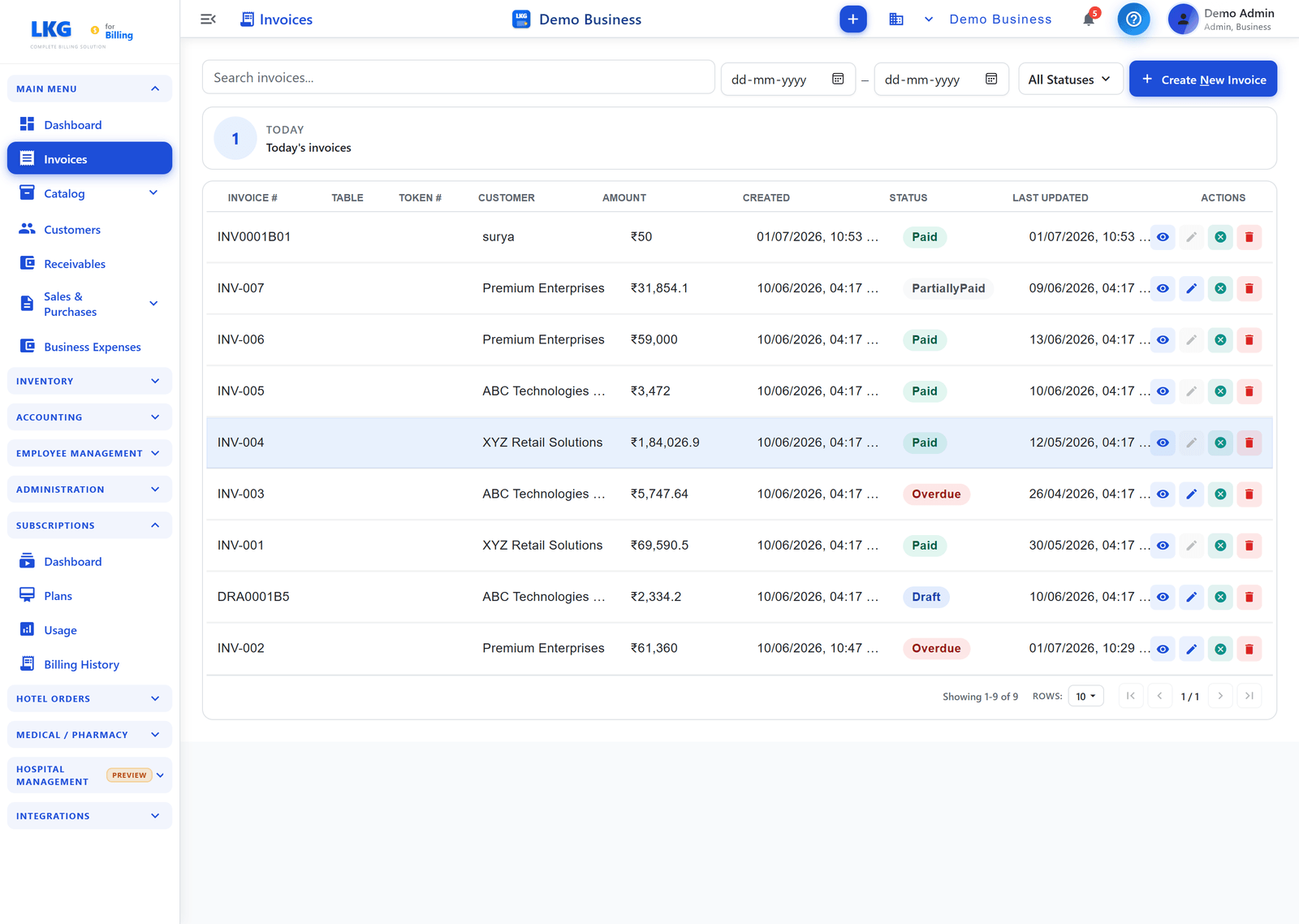
The invoice list shows all invoices for your business. Above the table a count card summarises the current view (e.g. TODAY — Today's invoices).
List Columns
| Column | Description |
|---|---|
| Invoice # | Unique invoice number (e.g. INV0001, DRA0001) |
| Table | Table number, if applicable (for restaurant/POS use) |
| Token # | Token number for order tracking |
| Customer | The customer the invoice is billed to |
| Amount | Total invoice amount |
| Created | Date and time the invoice was created |
| Status | Current status of the invoice (colour-coded) |
| Last Updated | Date and time of the last change |
| Actions | Quick action buttons (View, Edit, Cancel, Delete) |
List Controls
| Control | Description |
|---|---|
| Search invoices... | Search by invoice number or customer name |
| Date range (From / To) | Filter invoices created within a date range |
| All Statuses | Filter the list by a specific invoice status |
| Create New Invoice | Open the form to create a new invoice |
🏷️ Invoice Statuses
Each invoice has a colour-coded status badge:
| Status | Colour | Meaning |
|---|---|---|
| Draft | Blue | Invoice is being prepared, not yet sent |
| Pending | Orange | Sent to customer, awaiting payment |
| Paid | Green | Payment fully received |
| PartiallyPaid | Teal | Part payment received, balance outstanding |
| Overdue | Red | Payment due date has passed |
| Cancelled | Grey | Invoice voided, kept for records |
⚡ Row Actions
Each row has action buttons on the right:
| Icon | Action |
|---|---|
| 👁 View | Open the invoice details |
| ✏️ Edit | Edit the invoice (available for Draft invoices) |
| ✕ Cancel | Cancel the invoice |
| 🗑 Delete | Permanently delete the invoice |
Only Draft invoices can be freely edited. For paid or sent invoices, use Cancel or create a Credit Note instead.
📑 Document Types
LKG for Billing supports three GST document types:
| Code | Type | Purpose |
|---|---|---|
| INV | Tax Invoice | Standard sales invoice |
| CRN | Credit Note | Issue a refund or reduce invoice value |
| DBN | Debit Note | Increase the value of an invoice |
💳 Payment Methods
Payments can be recorded using:
- Cash — Physical cash collection
- Card — Credit or debit card
- UPI — UPI apps (PhonePe, GPay, Paytm, etc.)
- Bank Transfer — NEFT / RTGS / IMPS
- Cheque — Cheque payments
- Other — Any other method
Split payments across multiple methods are also supported.
🖨️ Print Formats
Invoices can be printed in 6 paper formats:
| Format | Use Case |
|---|---|
| A4 | Standard office printing |
| A5 | Compact invoice printing |
| Letter | US letter size |
| Legal | Legal size paper |
| Thermal 80mm | POS thermal printers |
| Thermal 57mm | Smaller thermal printers |
🌐 GST Supply Types
For GST-registered businesses, each invoice must specify the supply type:
| Code | Description |
|---|---|
| B2B | Business-to-Business supply |
| SEZWP | SEZ supply with payment of tax |
| SEZWOP | SEZ supply without payment of tax |
| EXPWP | Export with payment of tax |
| EXPWOP | Export without payment of tax |
| DEXP | Deemed export |
🎯 Next Steps
- Create an Invoice — Step-by-step guide to creating your first invoice
- Edit Invoices — Making changes to existing invoices
- Invoice Payments — Recording and tracking payments