🏠 Dashboard Overview
After logging in, you'll land on the Dashboard — your central control panel for managing your entire business.
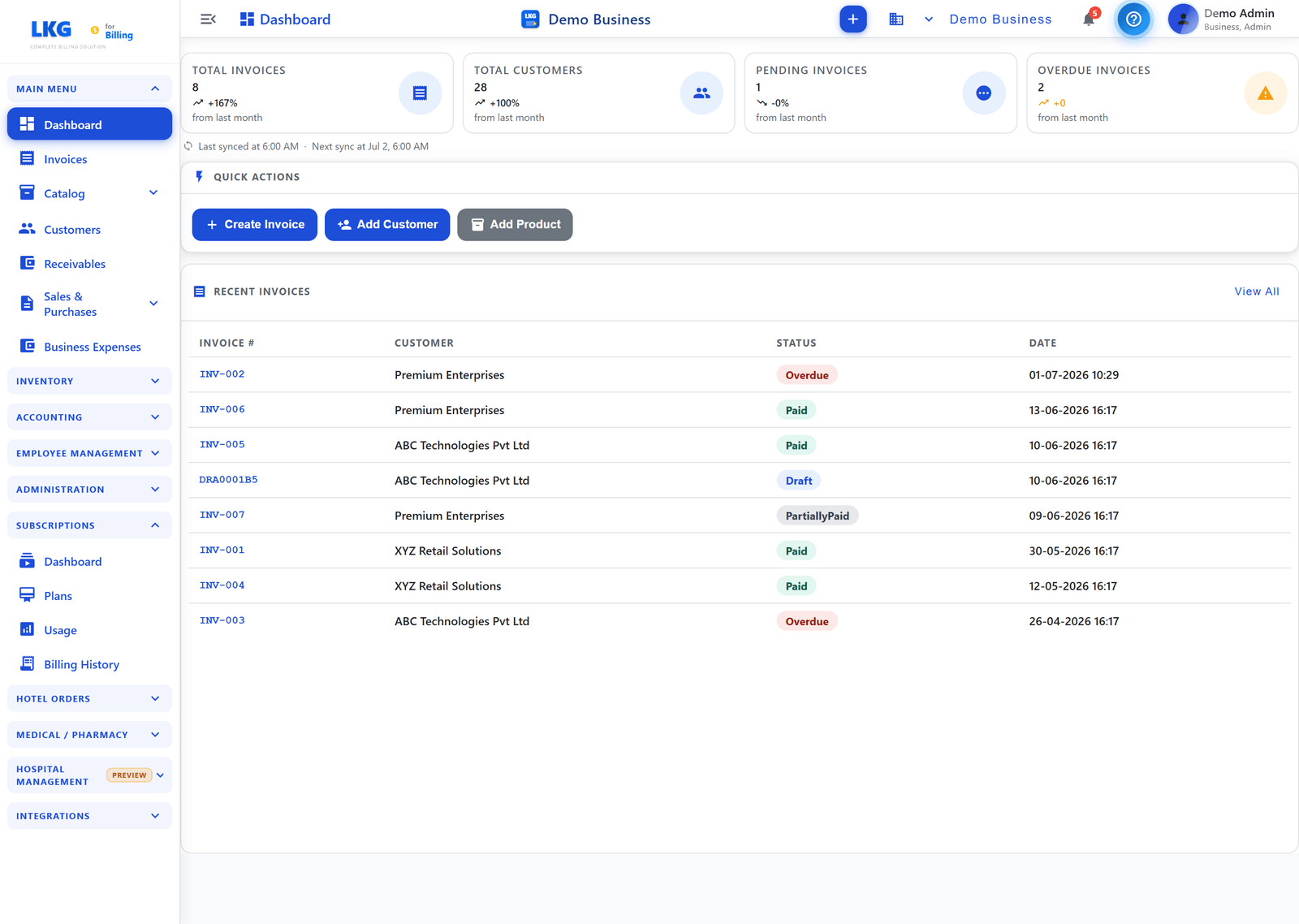
📊 Dashboard at a Glance
The dashboard opens with an overview of your business.
Summary Cards
Four cards show your key numbers, each with a "from last month" comparison:
| Card | Shows |
|---|---|
| Total Invoices | All invoices raised |
| Total Customers | Customers in your database |
| Pending Invoices | Sent invoices awaiting payment |
| Overdue Invoices | Invoices past their due date |
Quick Actions
Jump straight into the most common tasks:
- Create Invoice
- Add Customer
- Add Product
Recent Invoices
A table of your latest invoices with Customer, Status and Date, plus a View All link to the full invoice list. If you're just starting out, it shows "No Recent Invoices" with a shortcut to create one.
🗂️ Application Layout
The application is divided into three main areas:
| Area | Description |
|---|---|
| Left Sidebar | Main navigation menu to access all modules |
| Top Header | Business name, quick actions, notifications, and user profile |
| Main Content | The active module's content area |
🧭 Navigation Menu
The left sidebar is split into collapsible sections. Which sections appear depends on the modules you enabled and your role — for example Hospital and Hotel sections only show when those modules are on.
⭐ Favourites
Pin the pages you use most for one-click access. Click the star on any menu item to add or remove it here.
Main Menu
| Menu Item | Description |
|---|---|
| Dashboard | Return to the main overview |
| Invoices | Create and manage invoices |
| Catalog | Groups Products and Categories |
| Customers | Manage customer information |
| Receivables | Track amounts owed to your business |
| Sales & Purchases | Groups Estimates, Delivery Challans, Purchase Orders and Purchase Bills |
| Business Expenses | Record and track business expenses |
Inventory
| Menu Item | Description |
|---|---|
| Dashboard | Inventory summary and overview |
| Items | Manage inventory items |
| Transactions | View inventory movements |
Accounting
| Menu Item | Description |
|---|---|
| Reports | Financial and business reports |
| GST Report | GST/tax compliance report |
Employee Management
| Menu Item | Description |
|---|---|
| Dashboard | Team overview |
| Employees | Manage staff records |
| Attendance | Track attendance |
| Payroll | Run payroll |
| Salary Config | Configure salary structures |
| Expenses | Employee expense claims |
Administration
| Menu Item | Description |
|---|---|
| Business Management | Manage businesses and branches |
| Business Users | Manage internal users |
| Website Users | Manage customer/portal users |
| Audit Trail | View the activity/audit log |
| Recycle Bin | Restore or purge deleted invoices |
| Settings | Business, invoice, tax and branding settings |
Integrations
| Menu Item | Description |
|---|---|
| Data Import | Import existing data into the app |
Subscriptions
| Menu Item | Description |
|---|---|
| Dashboard | Subscription overview |
| Plans | View and change plans |
| Usage | Track usage against limits |
| Billing History | Subscription billing history |
Hotel Orders (when the Hotel module is enabled)
| Menu Item | Description |
|---|---|
| Tables | Select and manage tables |
| Create Order | Take a new order (KOT) |
| Cook Dashboard | Live kitchen order queue |
Medical / Pharmacy (when the Hospital module is enabled)
| Menu Item | Description |
|---|---|
| Patients | Patient directory |
| New Consultation | Start a consultation |
| Pharmacy | Prescription dispensing & pharmacy invoices |
Hospital Management (Preview — when the Hospital module is enabled)
Includes Outpatient, Appointments, Token Queue, Inpatient, Bed Management, Ward Management, Operation Theater, Imaging & Scans, Laboratory, Blood Bank, Vaccination, Outpatient Rooms, Staff Roster and Hospital Settings. See the Hospital / Pharmacy guides for details.
:::tip Collapse the Sidebar Click the ☰ hamburger icon in the top-left corner to collapse the sidebar and get more screen space. :::
🔝 Top Header
The header bar is always visible across all pages:
| Element | Description |
|---|---|
| ☰ Menu icon | Toggle/collapse the left sidebar |
| Page title | Shows the name of the current module |
| Business name | Displays your active business (e.g. Demo Business) |
| ➕ Button | Quickly create a new record (invoice, customer, etc.) |
| 🔔 Bell | Notifications and alerts |
| ❓ Help | Access help and support |
| User avatar | Shows your name and role; click to access profile & settings |
📋 Invoice Statuses
When viewing invoices, each invoice has a colour-coded status:
| Status | Colour | Meaning |
|---|---|---|
| Draft | Blue | Invoice created but not yet sent |
| Pending | Orange | Sent and awaiting payment |
| Paid | Green | Fully paid |
| PartiallyPaid | Teal | Part payment received |
| Overdue | Red | Payment deadline has passed |
⚡ Row Actions
For most records (invoices, customers, products, etc.), each row has action buttons:
| Icon | Action |
|---|---|
| 👁 View | Open and view the record details |
| ✏️ Edit | Edit the record |
| ✕ Cancel | Cancel the record |
| 🗑 Delete | Permanently delete the record |
🎯 Next Steps
Now that you're familiar with the layout, explore the key modules:
- Customers — Add and manage your customers
- Products — Set up your product catalog
- Invoices — Start creating invoices
Visit Settings to customize your dashboard experience.
Ready to manage customers? Click Next to learn about customer management! 👉