Fast Billing Software: Bill Customers in Under 30 Seconds

At a busy retail counter, pharmacy, or restaurant billing point, every extra click adds up across hundreds of transactions a day. Excel mode in LKG for Billing is built specifically for this — keyboard-only, spreadsheet-style invoice entry that lets you bill a customer without ever reaching for the mouse.
The Problem with Mouse-Driven Billing at Rush Hour
Most billing screens are designed around clicking: click to search a product, click the right result from a dropdown, click into a quantity field, click again to add a discount, click to move to the next line. Each click is small, but during a lunch rush at a restaurant, a busy Saturday at a retail counter, or a queue at a pharmacy counter, that adds up to real delay per customer — and real frustration in the queue behind them. Software built for occasional, careful data entry doesn't hold up under high transaction volume.
The cost isn't just the seconds themselves — it's what happens to accuracy under pressure. Staff rushing through a click-heavy interface during a queue are more likely to select the wrong product from a dropdown, mistype a quantity, or skip a discount they meant to apply. A faster input method isn't just about speed; it reduces the number of decisions and clicks where an error can creep in.
What Excel Mode Actually Does
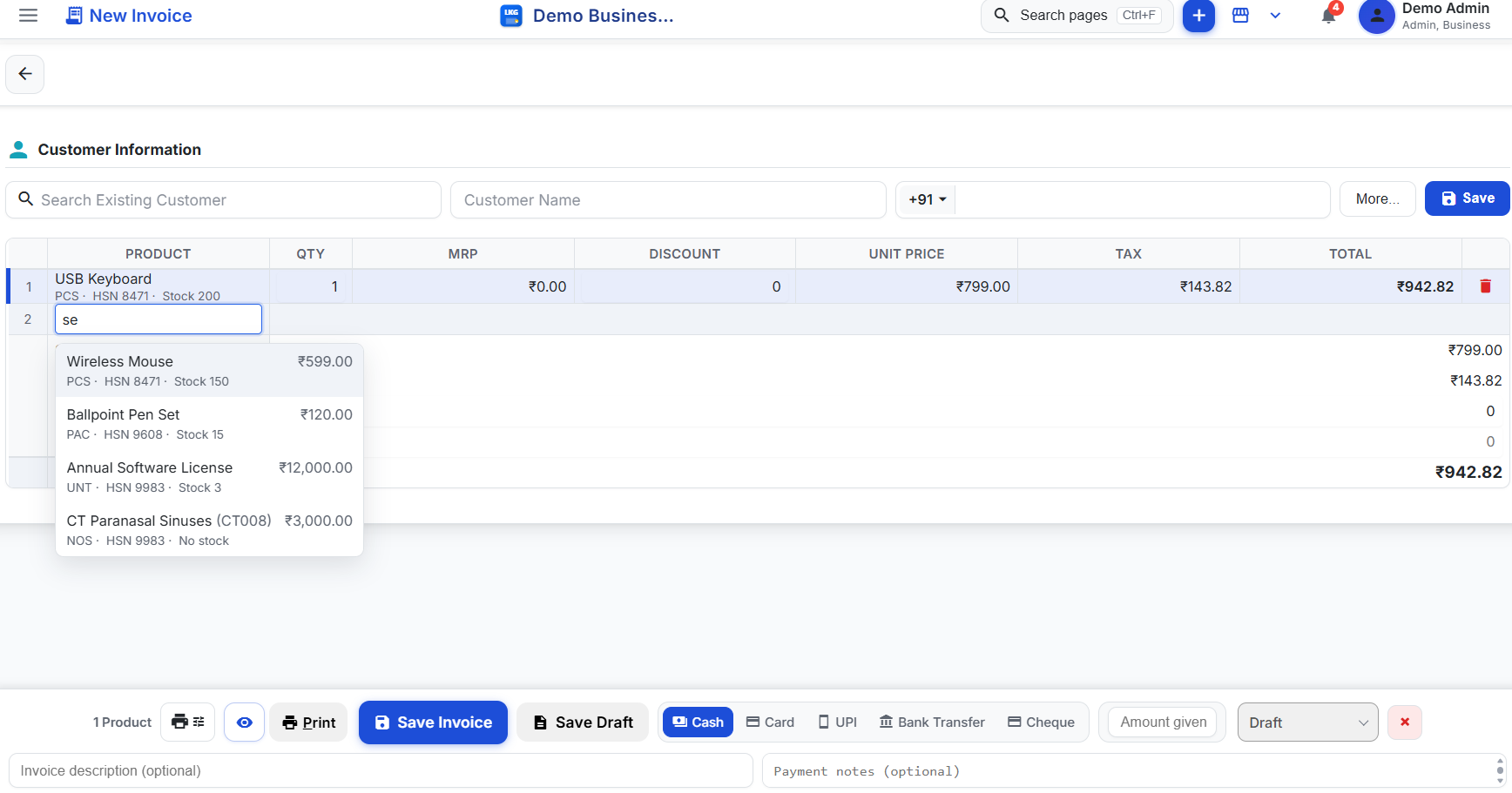
Excel mode replaces click-heavy product search with a spreadsheet-style row you drive entirely from the keyboard:
- Type the product name directly into the row — no separate search box, no clicking into a field first
- Use arrow keys to move through matching suggestions as you type, and Enter to select — the same motion as autocomplete in a spreadsheet
- Edit QTY, MRP, DISCOUNT, and UNIT PRICE inline, right in the row, without opening a separate panel or dialog for each field
- Move to the next row and repeat, building up the full invoice line by line without lifting your hands off the keyboard
Because every field is editable inline and every action has a keyboard path, an operator who knows the product names can build an entire invoice almost as fast as they can type.
This also means training a new staff member on the counter is faster. Instead of memorizing a sequence of screens and buttons, they're learning a small, consistent pattern — type, arrow down, Enter, adjust a field if needed, move to the next row — that repeats identically for every single line item, whether the invoice has one product or twenty.
Live Totals, No Extra Step
As you add and adjust rows, the invoice total updates live — you don't need to save or navigate to a summary screen to see what the customer owes. This matters more than it sounds: at a counter, the total is often the thing the customer is watching for, and any lag between adding the last item and seeing the final number is a lag the customer notices too. With totals updating as you type, the invoice is effectively "done" the moment you finish the last row.
Live totals also catch mistakes before they reach the customer. If a quantity was mistyped or a discount applied twice, an operator who's watching the running total tends to notice the number looks wrong immediately, rather than discovering it after the bill has already printed and the customer has walked away.
Built for High-Footfall Counters
Excel mode is aimed squarely at the businesses where billing speed is a daily, repeated bottleneck rather than an occasional inconvenience:
- Retail and kirana counters, where the same handful of fast-moving products get billed dozens of times a day
- Pharmacy counters, where customers are often waiting and a slow checkout directly affects how many people you can serve per hour
- Restaurant and food billing points, especially during table turnover at peak hours
- Any high-volume counter where staff already know product names and just need the fastest possible path from "customer at counter" to "bill printed"
In these settings, the difference between clicking through menus and typing straight into Excel mode isn't a minor convenience — it's the difference between a queue that moves and one that backs up.
It Still Stays GST-Compliant
Speed doesn't come at the cost of compliance. Every invoice created in Excel mode is a full GST-compliant invoice — HSN codes, tax rates, and the CGST/SGST or IGST breakup are all applied automatically based on the product and customer setup, exactly as they would be if you'd built the invoice through the standard form. You're not trading correctness for speed; Excel mode is just a faster way to drive the same underlying invoice.
That also means every invoice created this way still feeds into the same GST report, sales trends, and payment tracking as invoices created through the standard form — Excel mode changes how fast you enter data, not what happens to that data afterward.
Available on Every Plan, Including Free
Excel mode isn't locked behind a premium tier — it's part of the core invoicing experience on LKG for Billing, available from the free offline plan (₹0, forever, no credit card) right through every paid tier. If your counter is doing more than the free plan's 10 invoices a month, it's worth comparing paid options on pricing — but the speed of Excel mode itself is there from day one. Download the app to try it at your own counter.
Related reading
- Excel Mode Billing: Built for Shopkeepers Who Think in Spreadsheets
- Easy Billing Software: Create Your First Invoice in Minutes
- Billing Software for Retail & Kirana Stores
- Billing Software for Pharmacy & Medical Stores
- Invoices overview documentation
Ready to see how fast your counter can move? Download LKG for Billing and try Excel mode on your next invoice.