Excel Mode Billing: Built for Shopkeepers Who Think in Spreadsheets
If you've spent years billing customers out of an Excel sheet — typing item names into rows, tabbing across columns for quantity and price — switching to "proper" billing software can feel like relearning your own shop. Excel mode in LKG for Billing was built so you never have to.
Why Excel lovers don't need to change how they work
Most billing software hides your invoice behind forms, dropdowns and multi-step dialogs. That's a real adjustment if your muscle memory is built around a spreadsheet — type, Tab, type, Tab, Enter for the next row. Excel mode keeps that exact rhythm:
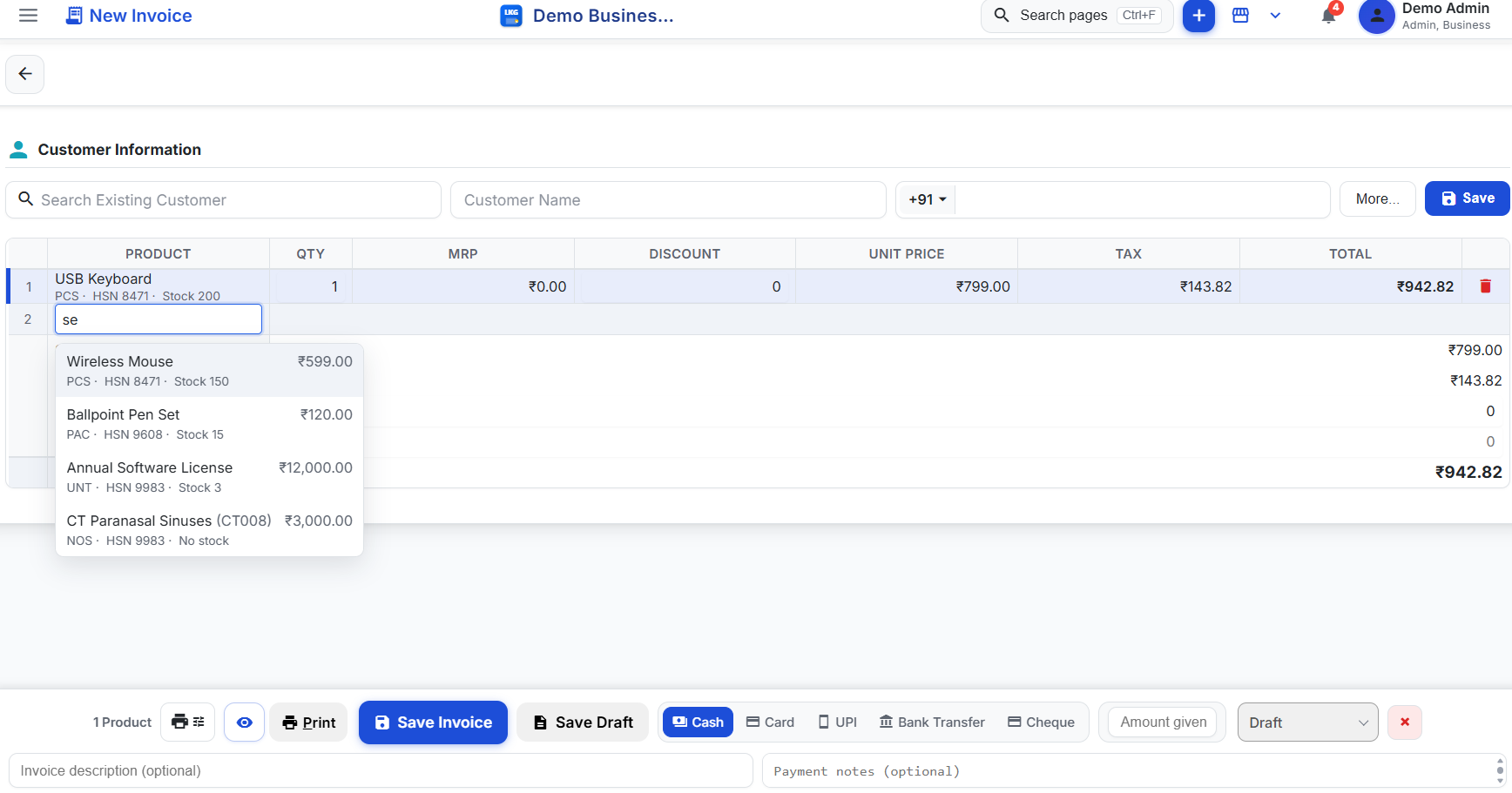
- Click the next empty row and start typing a product name — no menus to hunt through first.
- Arrow keys and Enter move you through product suggestions and confirm a pick, the same way you'd navigate a dropdown validation list in a spreadsheet.
- Editable spreadsheet columns — QTY, MRP, DISCOUNT and UNIT PRICE — sit right in the row, just like cells you'd overtype in Excel.
- A running product counter at the bottom keeps track of how many line items are on the bill, the way a row count would in a manual sheet.
The difference is what happens around that familiar typing: TAX and TOTAL recalculate live in the next columns as you go, so there's no separate formula to maintain and no risk of a broken SUM() reference after someone inserts a row.
What you stop having to do manually
A hand-built Excel billing sheet works, but it puts the burden of correctness entirely on you:
- Recalculating GST by hand (or trusting a formula nobody's checked in months) whenever a rate or discount changes.
- Manually looking up stock before promising an item, since the sheet doesn't know what's actually in the store room.
- Copying totals into a separate ledger or notebook to know what's owed to you across customers.
- Re-typing the same product names and prices into a fresh sheet every single day, with no history to search back through.
In Excel mode, each row you save shows the item's unit, HSN code, and current stock right below the product name, product suggestions carry price and stock as you type, and the subtotal, GST and grand total update instantly — all without leaving the keyboard. When you're done, the same bottom bar used elsewhere in LKG for Billing lets you pick a payment method and Save Invoice (the status stays Draft until you do).
A natural fit for high-volume, spreadsheet-native shops
Excel mode isn't a novelty — it's the practical choice for the same kinds of businesses that have historically kept their billing in a spreadsheet in the first place: kirana and grocery stores, pharmacies, hardware shops, and any retail counter with a steady queue of customers and a keyboard within reach. If that's your shop, read Fast Billing Software: Bill Customers in Under 30 Seconds for a deeper look at the speed side of the same feature.
Start free, no spreadsheet migration required
You don't need to import your old Excel billing sheet to try this — start fresh with the free offline plan (₹0, forever, no credit card required — 10 invoices/month, 10 customers, 20 products, complete offline functionality, no internet dependency) or the free 30-day cloud trial (no credit card required) if you'd rather bill from anywhere. Compare both on the pricing page, or download the offline app and open Excel mode on your very first invoice.
Related reading
- Fast Billing Software: Bill Customers in Under 30 Seconds
- How to Create a GST Invoice: A Step-by-Step Screen Guide
- Billing Software for Retail & Kirana Stores
- Invoices documentation
Ready to see it for yourself? Try the interactive walkthrough at Screen Guides, or jump straight into Excel mode on your first invoice.