Easy Billing Software: Create Your First Invoice in Minutes
If you've never used accounting software before and the idea of "billing software" sounds like it needs a finance background, it doesn't. Creating your first invoice is really just three things: pick a customer, add what you sold, and save. Here's how simple that actually looks.
You Don't Need to Know Accounting to Start
A lot of people put off setting up proper billing because they assume it involves ledgers, journal entries, or tax jargon they'd have to learn first. That's not how day-to-day invoicing works. Creating an invoice in LKG for Billing is closer to filling out a simple form than doing bookkeeping:
- Who is this bill for? — pick or add a customer
- What did you sell? — pick or add products or services
- How much, and at what price? — quantities and rates, which the software totals up for you
- Save — the invoice is created, GST calculated, ready to share
That's the entire mental model. Everything else — GST rates, tax breakup, running totals — happens automatically once you've entered those basics.
If you've ever filled out a simple online form — name, address, submit — you already have the muscle memory this needs. There's no separate "accounting mode" to learn, no chart of accounts to configure before you can bill your first customer, and no requirement to understand double-entry bookkeeping. The software handles the accounting logic behind the scenes; your job is just to describe the sale accurately.
Try It Risk-Free with Demo Mode
Before you commit to setting up your own business data, you can explore the whole app without registering anything. Click the Demo button on the login page, and you get the full application — pre-loaded with sample customers and products — so you can click around, create a few practice invoices, and get a feel for where things are before you touch your real business data.
This removes the biggest source of hesitation for first-time users: the fear of "breaking" something or making a mess of your real records while you're still learning. In Demo Mode, nothing you do affects any real account, so there's no wrong way to explore.
Use the demo to try things you're unsure about — add a customer, delete one, create an invoice and then edit it, check what a saved invoice actually looks like when downloaded as a PDF. Whatever you learn there transfers directly to your real account later, because it's the same interface, just with sample data instead of your own.
Walking Through Your First Real Invoice
Once you're ready to work with your own data, the flow is the same one you practiced in Demo Mode:
- Add your customer once. Name, contact details, and GSTIN if they're GST-registered. After this first time, they're just a click away on every future invoice.
- Add your products or services once. Name, price, and GST rate. Like customers, you set this up once and reuse it every time you bill.
- Start a new invoice, pick the customer, and add line items from your product list — quantities and any discount adjust automatically.
- Check the total, which is calculated live as you add items, including GST breakup.
- Save. Your invoice is created, numbered, and ready to print, download, or share.
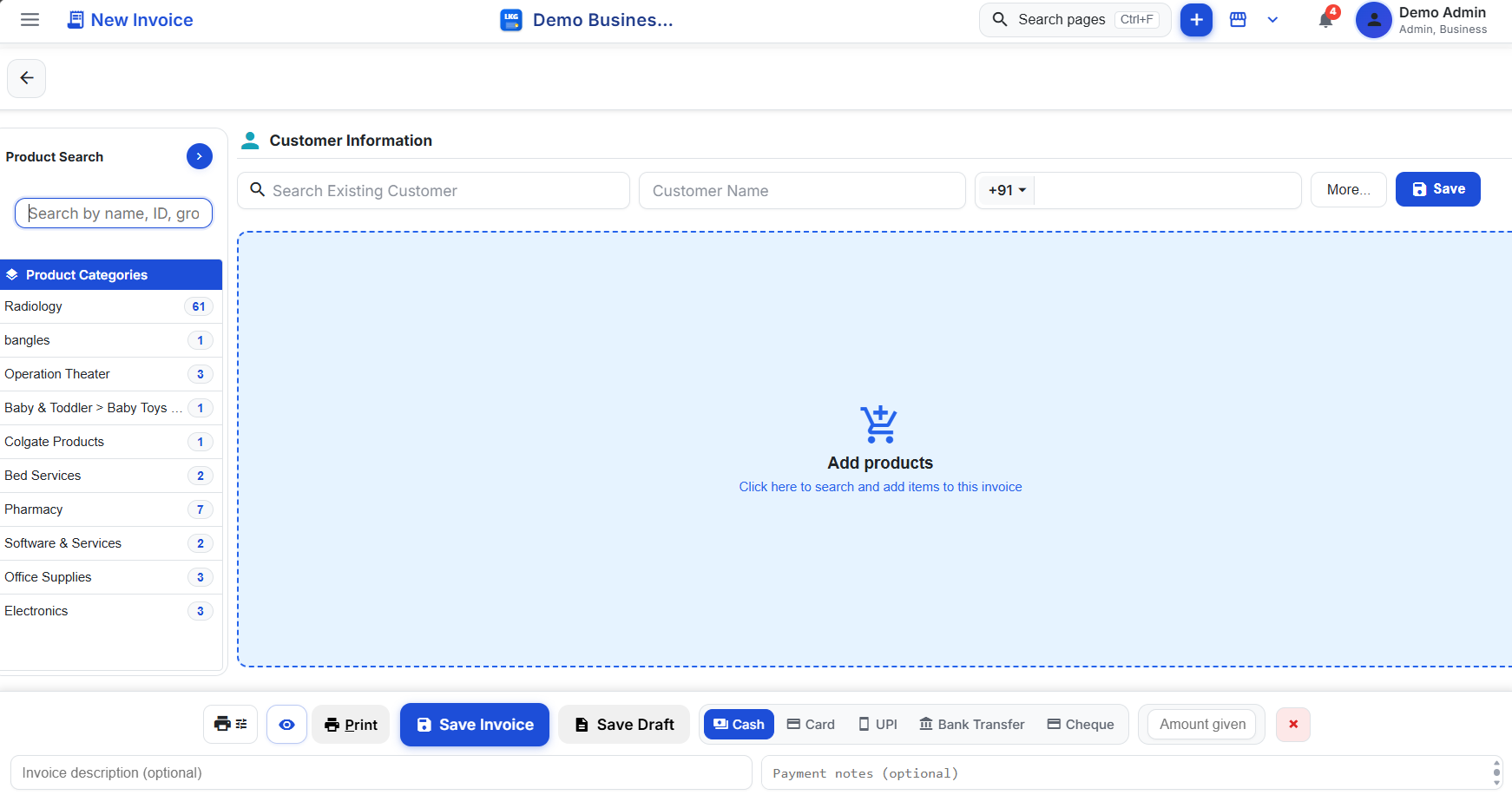
Notice that none of these steps required you to understand CGST versus IGST or how tax credit works — the software applies the correct GST treatment based on the GST rate you set on the product and where your customer is registered. You just describe what you sold.
If you make a mistake — the wrong quantity, a missing item, an incorrect customer — you can go back and edit the invoice before it's finalized, the same way you'd correct a typo in any form. Nothing about the process is one-shot or unforgiving.
It Gets Faster the More You Use It
The first invoice takes a few minutes because you're creating your first customer and first product from scratch. Every invoice after that is faster, because your customer list and product catalog are already there — you're just picking from what exists rather than typing everything fresh. Businesses billing the same handful of regular customers, or working from a fixed product catalog, often get down to well under a minute per invoice once the basics are set up. And if your business eventually needs to bill faster than even that — a busy counter with a queue forming — there's a keyboard-driven Excel mode built for exactly that pace, which you can grow into once you're comfortable with the basics.
Free to Start, No Pressure to Upgrade
You can do all of this on the free offline plan — ₹0, forever, no credit card, no expiry — which includes 10 invoices a month, 10 customers, and 20 products, more than enough to get comfortable with billing before deciding if you need more. If you'd rather bill from the cloud, there's a free 30-day trial with the same limits. See both options compared on pricing, or go straight to download to get started.
Related reading
- How to Create a GST Invoice: Step by Step
- Fast Billing Software: Bill Customers in Under 30 Seconds
- Free Billing Software: What You Actually Get for ₹0
- Getting started with the demo account
Want a full screen-by-screen walkthrough? Browse the screen guides or download LKG for Billing and try Demo Mode right now.